Step 1
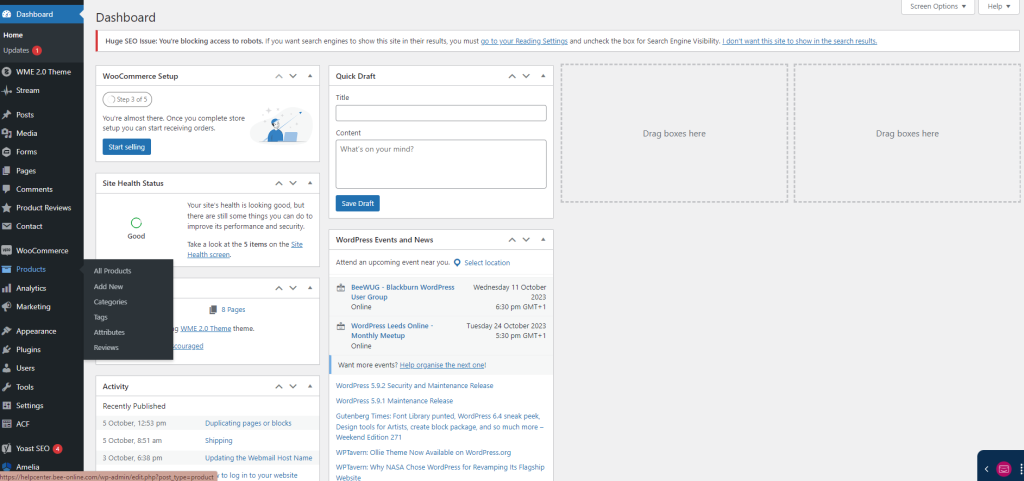
From the dashboard, on the left hand side, hover over Products and click All Products.
Step 2
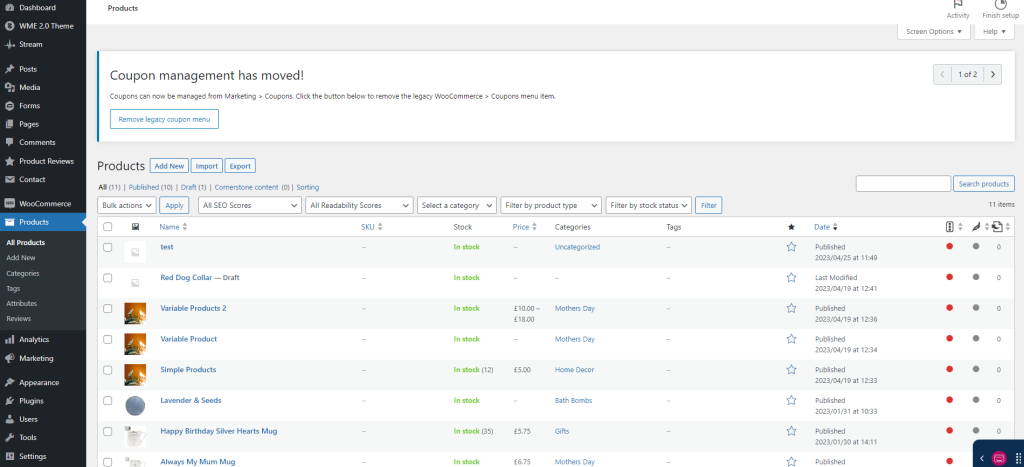
Select which product you need to update/add stock amounts to.
Step 3
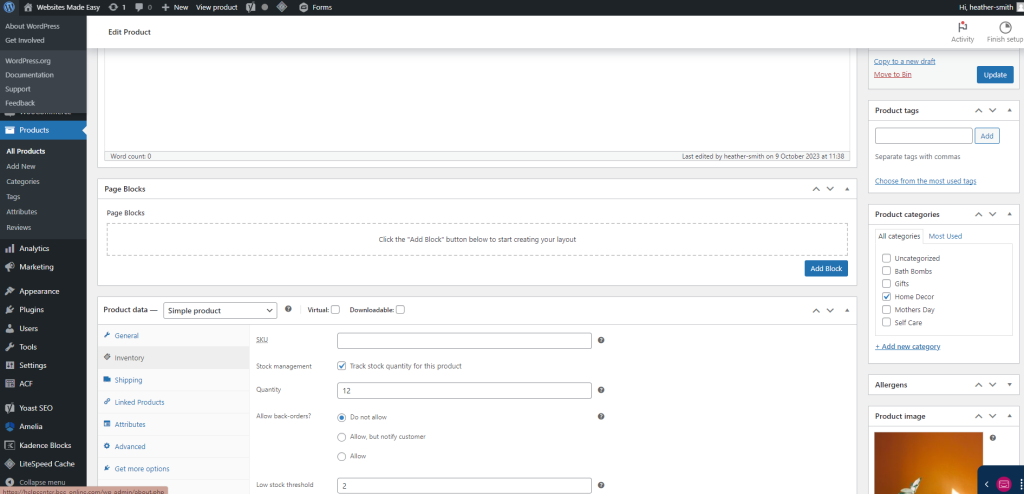
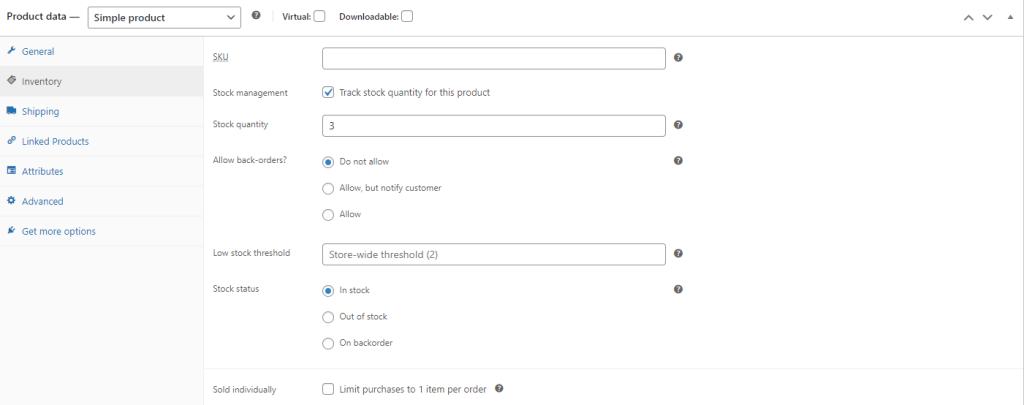
Scroll down to the product data block, here you will select the Inventory tab.
Step 4
Make sure that the “Stock Management” Box is ticked. Stock quantity – enter for this product.
You can also set if you want to allow back orders and how much the low stock threshold is.
Step 5
Once done, click update on the top right hand side.