
CTA Buttons

A Call-to-Action (CTA) button is a clickable element on your website designed to prompt visitors to take a specific action.

What is a CTA Button?

A Call-to-Action (CTA) button is a clickable element on your website designed to prompt visitors to take a specific action. Common examples include “Contact Us,” “Sign Up,” or “Buy Now.” CTA buttons help guide users toward important goals, such as making a purchase, filling out a form, or navigating to key pages. They are essential for improving user engagement and driving conversions.

Step 1

Add a New Block
To create a CTA button, you first need to add a new block:

  • Click the small “+” prompt button that appears in empty spaces.
  • Alternatively, use the blue square “+” button located at the top-left corner of the page.

Step 2

Insert the Button

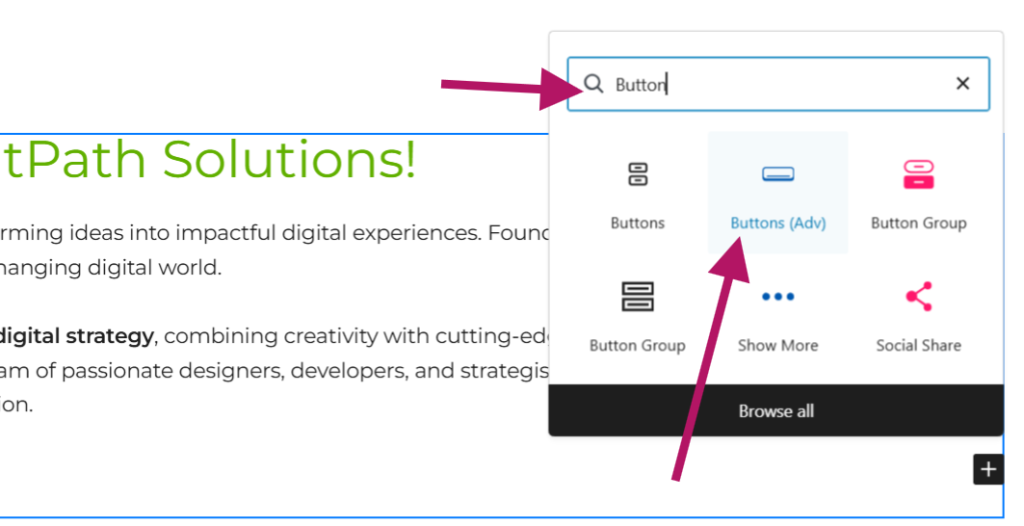
  • In the search bar, type “Button”.
  • Select “Buttons (Adv)” from the options.

This will insert a button into your page.
Step 3

Configure the Button
Now that the button is added, let’s make sure it matches your branding and links correctly:
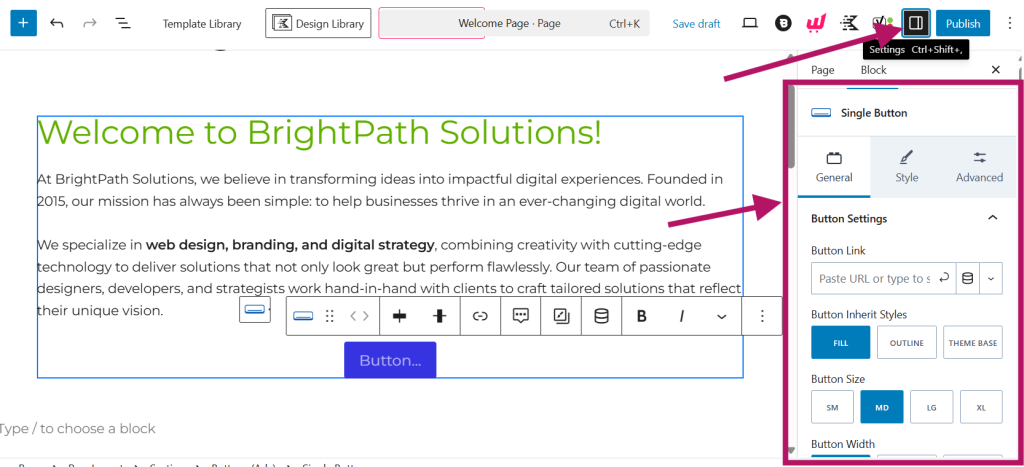
  • Ensure the editor panel on the right-hand side is visible.
  • If it’s not open, click the button on the top-right corner of the page (as shown in the image).
    This will open the editor panel.

Step 4

Match Your Website Theme
To quickly match the button style with your site:
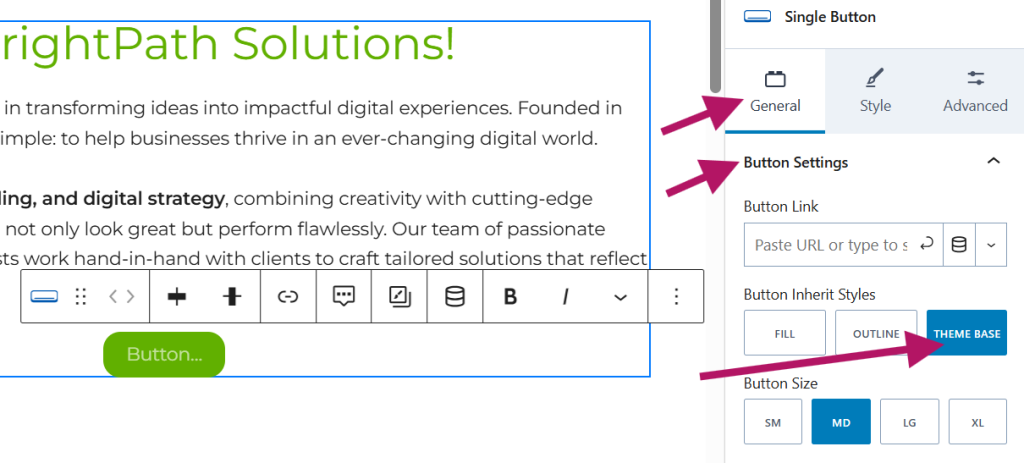
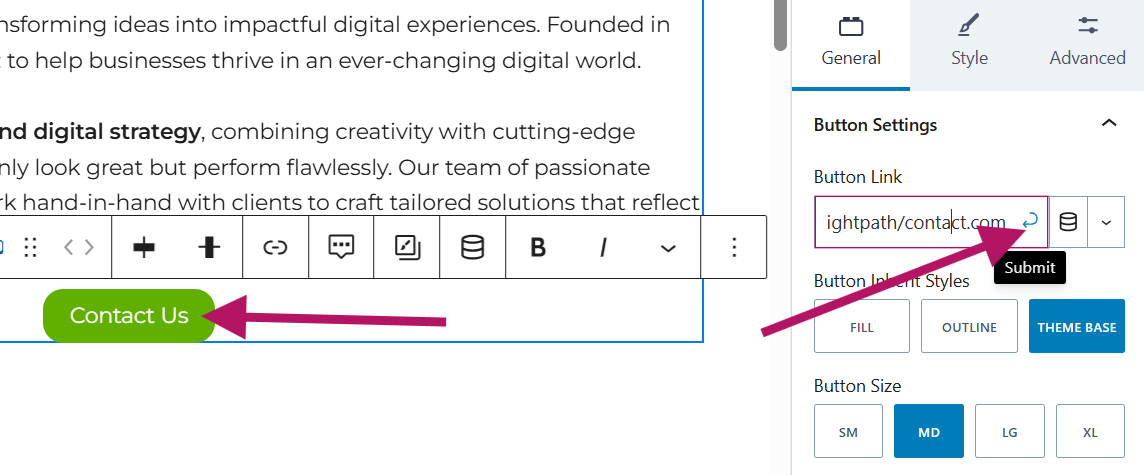
  • Go to General > Button Settings > Button Inherit Styles > Theme Base.
  • Select “Theme Base” to apply your site’s color theme to the button.

Step 5

Add Link and Text

  • In the Button Link section, insert the URL where you want the button to lead.
  • Then click the button directly and type your desired text (e.g., “Contact Us” for a contact page).

Step 6

Adjust Button Alignment

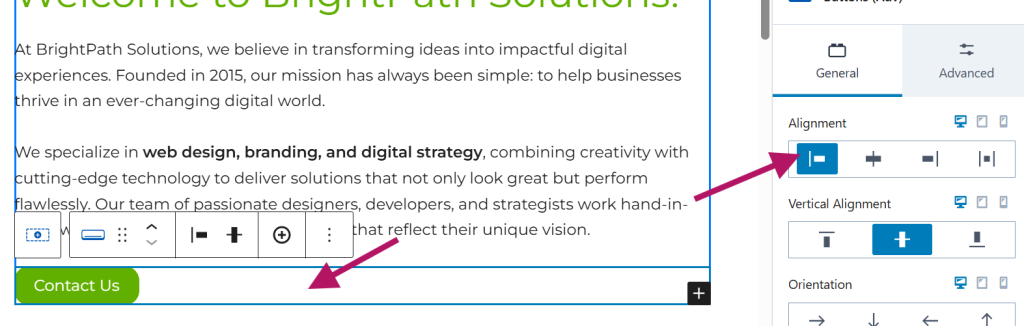
  • If the button is centered and you’d like it aligned left or right, click the blank area beside the button.
  • This will open the Alignment settings in the right-side panel, where you can choose your preferred alignment.
That’s it! You’re all set.


Check out our other help guides