
Step 1
Your product may come in a variety of sizes or colours, so you need to be able to add these options in your product data.
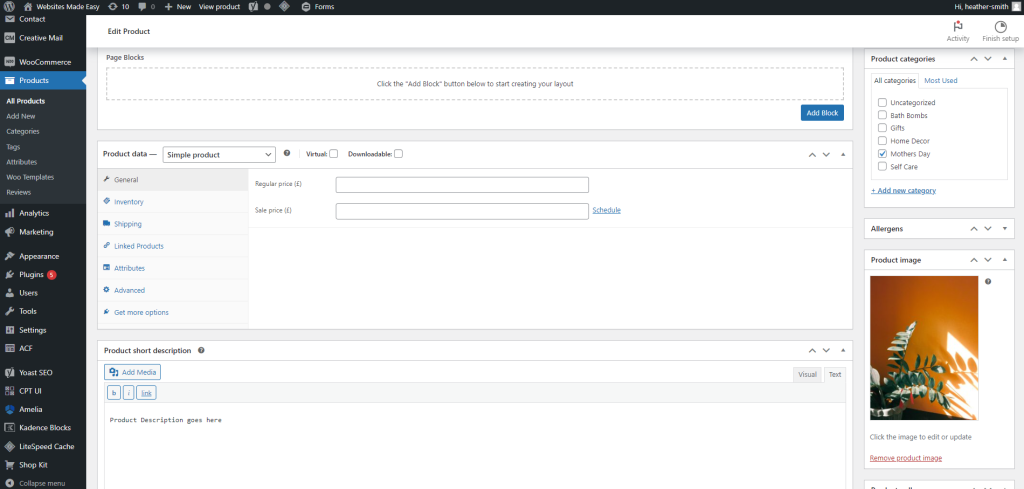
Once you have selected add new product and entered your title, you will need to scroll down to the Product Data box. (see simple product guide to learn how to add a product)
Step 2
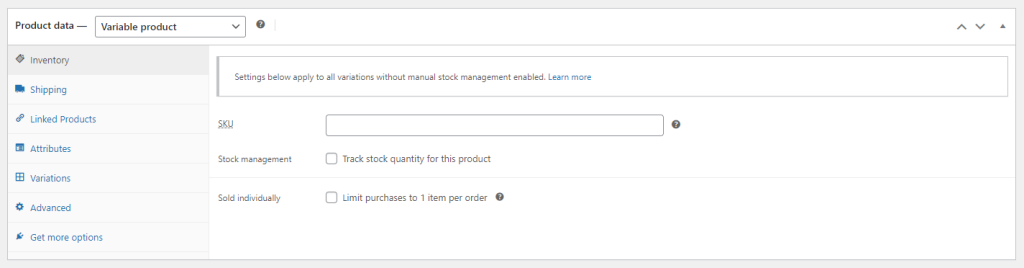
You will need to select the drop down and change the product from a Simple Product to a Variable Product. Then you need to select the Attributes tab
Step 3
You will need to select the drop down and change the product from a Simple Product to a Variable Product. Then you need to select the Attributes tab
Step 4
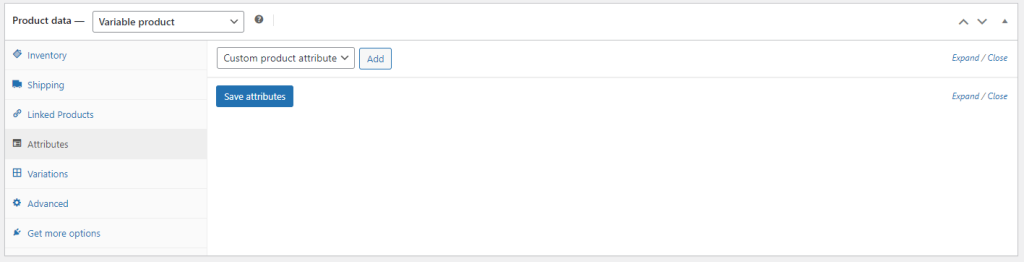
Once in this section, click “Add” next to the custom product attribute.
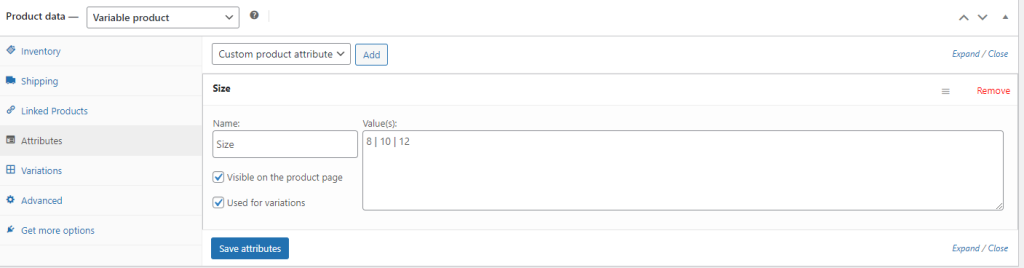
Name the option, i.e Size.
Values – You need to separate your values using the vertical line on your keyboard ( | ).
Make sure the Visible on product page box is ticked and the Used for variations box is also ticked.
Once you have added all of your options, click the Save Attributes button.
Step 5
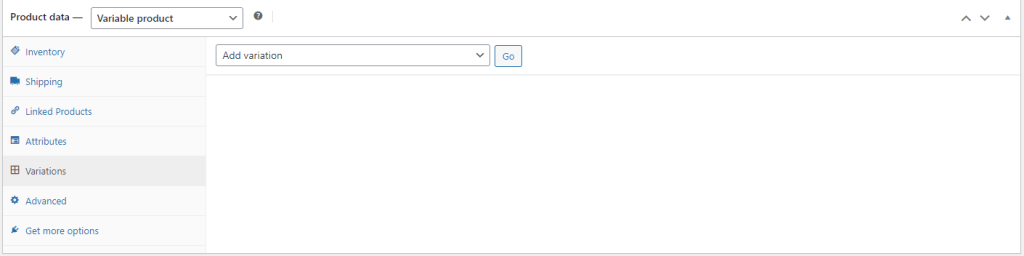
Then you’ll need to click the Variations tab on the left hand side.
Step 6
If all of your options are the same price then the next step is for you, if your options are different prices, head to this section
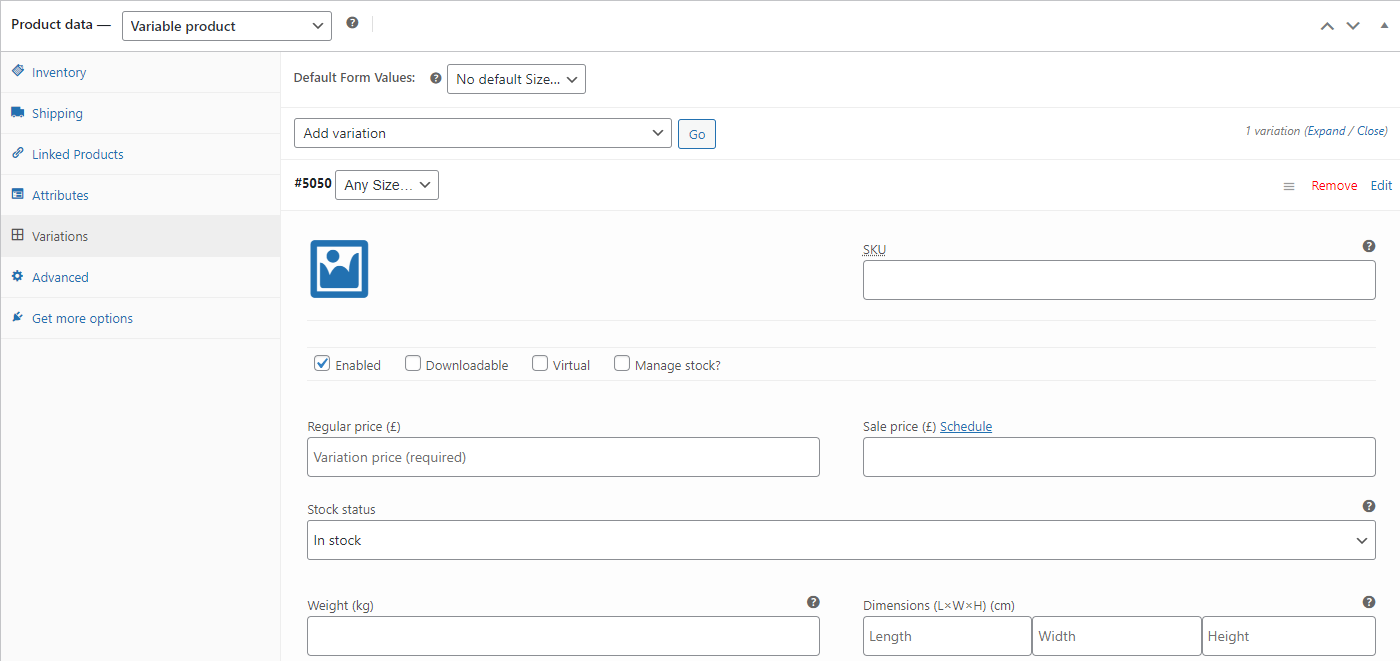
Press the go button and the click the bar that has the drop down to open the data.
Step 7
If all of your options are the same price then the next step is for you, if your options are different prices, head to this section
Press the go button and the click the bar that has the drop down to open the data.
Here you will be able to add the price of the product, without this price, customers will not be able to purchase the product.
You can also set the stock amount by ticking the Manage Stock box.
Step 8
If your options are different prices, follow this next section
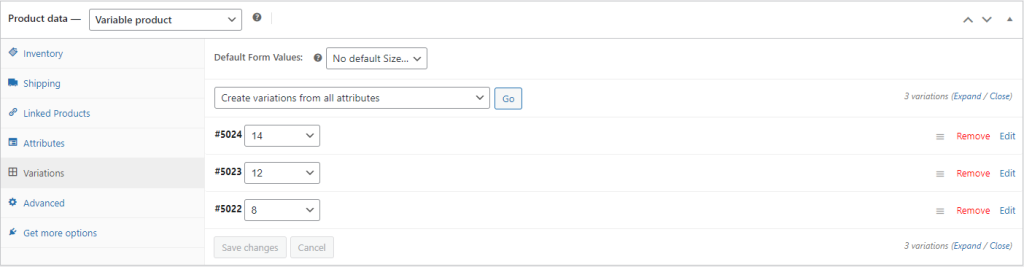
Adding the attributes is the same, but when you go to the variation tab, you’ll need to change the drop down to “Create variations from all attributes” and click go.
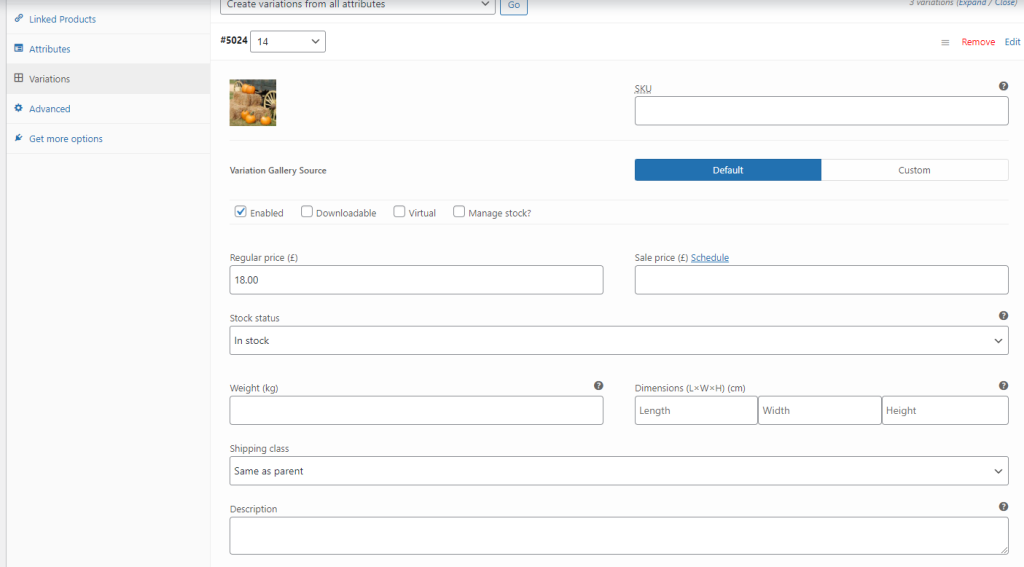
This will create sections for each option. Open the first one and fill out the data, like price and stock.
Step 9
You can change the image for the specific option too. You will need to add the price and you can also add the stock levels by ticking the Manage Stock box.
Step 10
Once done, save the variations and click publish at the top right hand side.